

Create and Start a Live Streaming
To create a live video you need to select the NEW VIDEO button, choose the GO LIVE option and enter all the needed information.

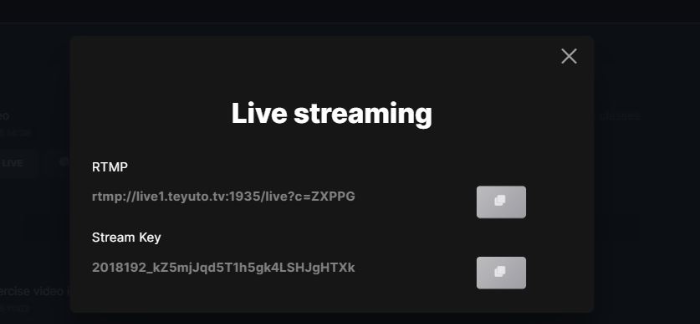
Once you have saved and the video is created you will have to click on the "GO LIVE" button and the following page will be shown:
START A LIVE VIDEO WITH OBS
Now, if you haven't already done so, download OBS https://obsproject.com/download and start the program.
If this is your first time starting OBS, a window will automatically open to guide you through the configuration;
if not, click on "Tools" in the toolbar and select "Auto-configuration wizard".
Now, you need to get the keys to start streaming on Teyuto, then go back to OBS and click on "Settings".
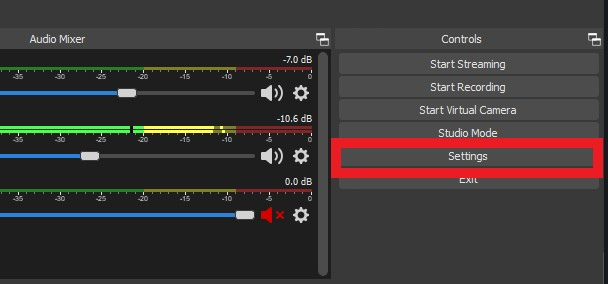
Next click on "Streams" and select "Customise Streaming Server" and then enter the Live Server and Stream Key in the fields provided.

In the sources box, click on the + symbol to select the source from which to capture the video; then you are ready to broadcast the live broadcast by clicking on "Start live".
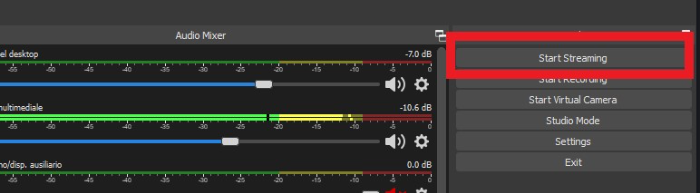
To end the live broadcast, click on "Stop broadcast" and confirm the end of the broadcast on the "My Videos" page.N.B.
After the live broadcast the video will always be available for viewing on demand; for a few minutes, depending on the speed of your connection, the video will be in processing.
After the end of the process, the video can be viewed correctly.
Is this article helpful?
Articles in this section: 10 articles
- Connect Zapier with Teyuto
- Sell your contents (with multi currency)
- Export contacts in CSV format
- Create and Start a Live Streaming
- Create a Custom Page
- How to embed a video into an external website
- Edit a video quiz (and display results)
- How to customise the homepage
- How can I set a custom domain?
- How to cancel your Teyuto Account